It's 11:40pm. Instagram's icon dimmed an hour ago because you gave it a 30-minute timer in Digital Wellbeing. Now you're in Settings deleting that timer, and the whole thing takes less time than reading this sentence. If you're looking up how to block apps on Android, that's the part worth solving. Blocking is easy. Keeping apps blocked when you're tired is the hard bit. Here's every built-in option, how each one gets undone, and how to set them up so the midnight version of you can't just walk through.

Why blocked apps on Android come back by Thursday
Every built-in way to block apps on Android ships with an exit. That's a sensible design choice. Google's tools assume the person who set the limit and the person who hits it are on the same side. At 8am they are. At midnight they usually aren't.
That gap has been measured. Economists Hunt Allcott, Matthew Gentzkow and Lena Song ran a randomized experiment on smartphone and social media use and published it as Digital Addiction in the American Economic Review in 2022. Letting people set limits on their future screen time substantially reduced their use. Their model estimates that self-control problems cause 31 percent of social media use.
So limits work, as long as you can't overrule them in the moment. That's the only test worth running on each method below. When you're tired and bored, how long does it take to get back in?
Method 1: App timers in Digital Wellbeing
App timers are the default answer, and they're decent. You give an app a daily budget. When the budget is spent, the app closes and its icon dims until the timer resets at midnight.
- Open Settings and tap Digital Wellbeing, then App timers. Menu names can differ a little between phone makers, and Digital Wellbeing is only on some phones.
- Find the app and tap Set timer next to it.
- Pick the time you're allowed per day and tap OK.
How it gets undone: Google's own help page spells it out. To use the app again before midnight, go back to the same menu and delete the timer. The lock and the key live on the same screen.
Best for: finding out which apps you'd actually miss. Run timers for a week and watch which ones you delete. Those are the apps that need a stronger lock.

Method 2: Focus mode and Bedtime mode
Focus mode pauses a group of apps at once. While it's on, you can't open them and their notifications stop. Go to Settings, Digital Wellbeing, Focus mode, pick the apps and tap Turn on now. Tap Set a schedule and it switches on by itself, say every weekday morning from 9 to 12.
How it gets undone: two buttons. Take a break unpauses the apps for a time limit you choose, and Turn off now ends the whole thing. Both sit right where your thumb already is.
Bedtime mode is the gentler cousin. Under Digital Wellbeing, Bedtime mode, Bedtime routine, you can run it on a schedule or whenever the phone is charging between set hours. It can switch the screen to Grayscale and turn on Do Not Disturb. It doesn't block anything. Grayscale just makes the feed a lot less fun, and on some nights that's enough.
Best for: study blocks and work mornings where you mostly need the notifications gone.
How to make the built-in tools harder to undo
There's one setting most guides skip. Digital Wellbeing has an App limits PIN, a separate 4-digit PIN for your app time limits. Google describes it as a way to set limits that only the person with the PIN can change, and it's meant for keeping other people away from your settings. Flip that around and point it at yourself.
- Set your timers first, with numbers you can live with on a bad day. You won't be able to loosen them on your own later.
- Hand your phone to someone you trust. A partner, a flatmate, a sibling. Ask them to open Digital Wellbeing, turn on PIN for app time limits and type a PIN you don't see. The exact path varies between phones.
- Don't ask for the PIN. If a limit really needs changing, ask them in daylight.
Now deleting the timer at midnight needs a person who's asleep. That's a real lock, and it costs nothing. Google's page only describes the PIN for app time limits, so don't count on it to cover Focus mode's Take a break button.
The catch is the other person. They have to be around, they have to say no, and you have to be fine asking someone for permission to open your own phone. Plenty of adults aren't. If that's you, the next option takes the exits away without a friend in the loop.

Method 3: An app blocker with no break button
Third-party app blockers exist for the part Digital Wellbeing won't do: a session you can't end early. We make one, so read this section with that in mind.
Nobrainrot is free on Google Play. You put the apps that eat your day into a mode and lock them with one tap or on a schedule. Before each session you choose how strict it is. Easy lets you stop or take a break. Hardcore doesn't, so the session runs until the timer ends, and opening a blocked app shows a block screen instead of the feed.
It needs one Android permission, Accessibility, to know when you open a blocked app. That permission also feeds your stats, so which blocked apps you try to open, and how often, is sent to our servers.
How it gets undone: through your phone's settings. The Android app has no strict mode, so nothing stops you from switching off its Accessibility permission in the middle of a session, and blocking stops when you do. That takes more steps and more intent than tapping Take a break, which is the point. It still isn't a wall, and we'd rather you read that here than find it out at midnight.
Best for: people who keep tapping Take a break and want the in-app exits gone. Our Android launch post walks through every screen.
A setup that survives midnight
- Get your baseline. Settings, Digital Wellbeing. The chart shows today's use. Write the number down, because you'll want it in two weeks.
- Pick three apps, not thirty. The ones you open without deciding to. Leave maps, banking, messages and the camera alone. A lock that breaks your day gets switched off by Friday.
- Week one: app timers only. Notice which timers you delete. Those are your problem apps.
- Week two: lock the problem apps properly. Either a friend sets the App limits PIN, or you run a Hardcore session for the hours that hurt most. Usually that's the first hour after waking and the last one before bed.
- Make the phone boring at night. Bedtime mode with Grayscale, on a schedule.
- Charge it outside the bedroom. If you'd rather the lock were an object too, a physical blocker on the wall turns unlocking into a walk.
- Check the number after two weeks. If it barely moved, go one step stricter on this list.
Why we built a lock you have to walk to
Every method in this article fails the same way in the end. The exit lives on the same device as the craving, and the craving is patient. Timers get deleted and breaks get taken. What a tired thumb can't get past is distance.
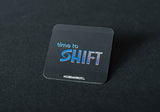
So we built Shift as an object, not a setting. It's a small puck with a magnet, so it sticks to a wall or the fridge. Tap your phone on it and the apps you picked go dark. Getting back in means standing up and walking to wherever the puck lives, and most nights you won't bother.
Shift costs 199 zł once. It comes with five emergency unlocks for real emergencies, 3 months of Shift+, a free sticker and a 30-day money-back guarantee, and after the three months it keeps working on the free tier. Across users who keep a mode running for at least two weeks, the app measures an average of 2 hours 13 minutes a day saved. That's our own in-app number, and it's an average, so yours will differ. Check the Shift page for phone compatibility before you order.
Want the wider plan around the lock? Read how to reduce screen time without willpower. Thinking about ditching the smartphone instead? The dumb phone guide covers every option that still runs WhatsApp and Spotify.
Frequently Asked Questions
Use Digital Wellbeing, which is built into many Android phones. App timers give an app a daily limit, and Focus mode pauses a group of apps on a schedule. To make the limits stick, have someone else set the App limits PIN. Nobrainrot is also free on Google Play and adds a Hardcore session with no break button.
Yes, easily by default. Google's help page says you can delete an app timer to use the app again before midnight, and Focus mode has Take a break and Turn off now buttons. An App limits PIN that someone else holds makes changing app time limits much harder.
Combine two things: a lock without an in-app exit, and a key you don't hold. That can be an App limits PIN set by a friend, or a Hardcore session in an app blocker. If you want the key off the phone entirely, Shift moves the unlock onto a puck on your wall. Check its page for phone compatibility.
Not on its own. When an app timer runs out, the app closes and its icon dims until midnight, but you can delete the timer. Focus mode pauses apps until you take a break or turn it off. Both are speed bumps unless someone else holds the PIN.
It's a separate 4-digit PIN in Digital Wellbeing for app time limits. Once it's on, the limits can only be changed by someone who knows the PIN. Google pitches it for keeping others away from your limits, but it works best when a person you trust sets it and keeps it to themselves.
Limits do work when you can't overrule them. In a 2022 American Economic Review study, letting people set limits on their future screen time substantially reduced their use. A blocker helps exactly as much as getting past it costs you real effort.

Decide how strict to be while you're calm. Let something else hold you to it.
Get Shift: 199 zł, 30-day guarantee →
More on Brain Fuel: Nobrainrot on Android · How to Reduce Screen Time · The Dumb Phone Guide

Nech si telefon. Zamkni feed.
WhatsApp, Spotify a mapy zůstanou otevřené. Feed ne.
InPost zdarma · Odesíláme do 48 h